Instructions for Families
Note: You should only be on this page if you’ve submitted your Adopt-a-Family application, you’ve completed your Zoom consultation, and I’ve confirmed that you were sponsored. Otherwise, please visit this page.
Like last year, we’re using Amazon Holiday Gift Lists as an efficient way to match sponsors and families. Each child will have their own gift list.
After you receive my confirmation email that you’ve been matched, please get started on your gift list(s) as soon as possible. Be sure to email me your gift list link(s) within 72 hours of that confirmation (instructions below). You can always add additional items later even after sending me the links.
Guidelines on Gift List Creation for Parents/Guardians:
1. Only children ages 18 or younger are eligible for sponsorship. The limit is six (6) children per family.
2. Please create a separate gift list for each child. So if you have three children, you’ll create three gift lists.
3. If you need ideas on gifts, check out Amazon’s 2025 Toys We Love list.
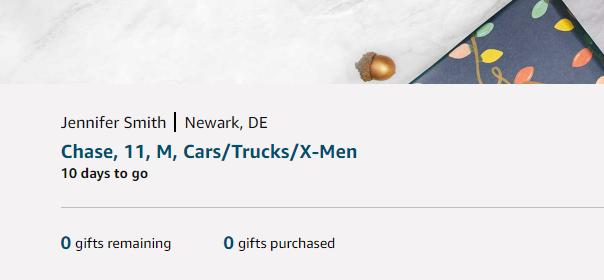
4. Please make a note in each gift list that includes that child’s first name only, age, sex and interests/hobbies.
For example:
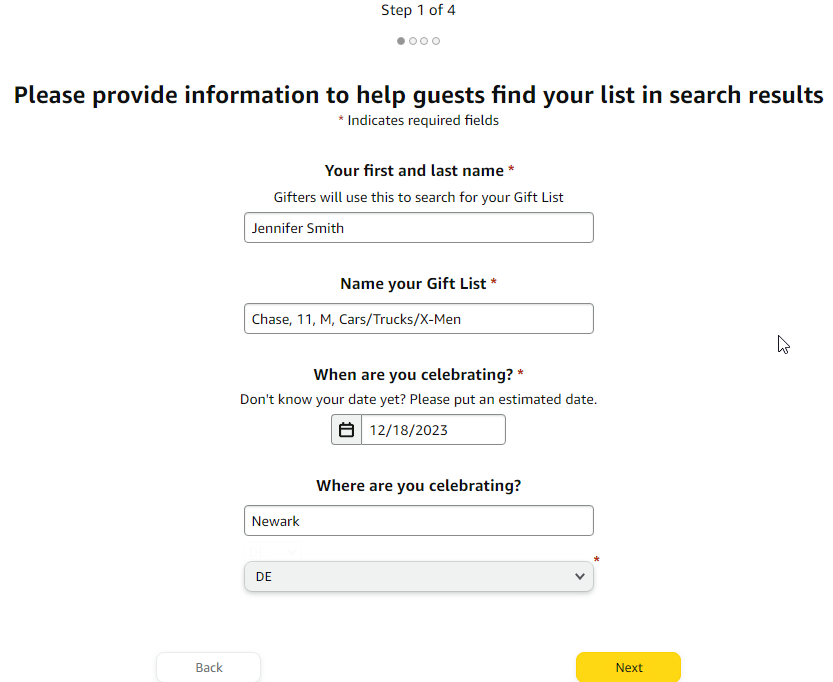
Chase, 11, M, Cars/Trucks/X-Men
Here’s the reason: If gift list items are unavailable or too expensive for your sponsor’s budget, they can shop for alternative items that your child might enjoy.
5. Please remember that some items may be out of stock when your sponsor goes to purchase them, so try to include a variety of items in your gift lists. Sponsors may be able to purchase an item from another seller on Amazon or find an alternative item.
6. Your sponsor might not purchase everything in a child’s gift list. Or they may purchase items that aren’t in a child’s gift list. Sponsors make their purchasing decisions based on their budgets and the availability of the items.
7. Please be mindful of the types of items you’re placing in your gift lists. Sponsors typically do not purchase expensive items like computers, phones, video game systems, etc.
8. You may place gift cards and/or game cards in your gift lists, however we ask that you don’t only request gift cards/game cards in your gift lists. Please include actual items, such as clothing or toys, in your gift lists.
9. After you receive my confirmation email that you’ve been matched, please get started on your gift list(s) as soon as possible. Be sure to email me your gift list link(s) within 72 hours of that confirmation (instructions below). You can always add additional items later even after sending me the links.
10. Please make sure not to enable Amazon’s “Keep it a Surprise” setting, since it hides purchased items and can lead to duplicate gifts for your children.
Amazon Holiday Gift List Creation Instructions
(Screenshots are from 2023, but they should still be accurate.)
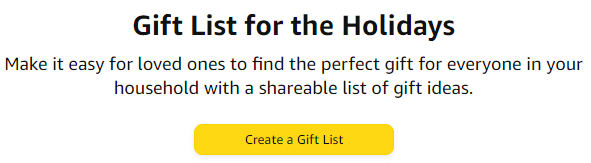
Click “Create a Gift List”
3. Sign in to your Amazon Account. (If you do not have an account, you will need to create one prior to making a registry)
4. Complete all 4 Steps.
For Step 1, write the first name or nickname that you wrote in your Adopt-a-Family application. If a last name is required, put NA. For example, your registry name could be Lisa or Lisa NA. Note: The screenshot below is from 2023, when last names were being disclosed to sponsors. So if you see a last name in any of the screenshots or instructions below, just ignore it. You only have to put your FIRST NAME this year. Again, this is the first name or nickname that you put in your Adopt-a-Family application.
Name each Gift List using this format.
For the date of celebration, you can put 12/12/2025.
For the location, you can put your home address location. Then click Next.
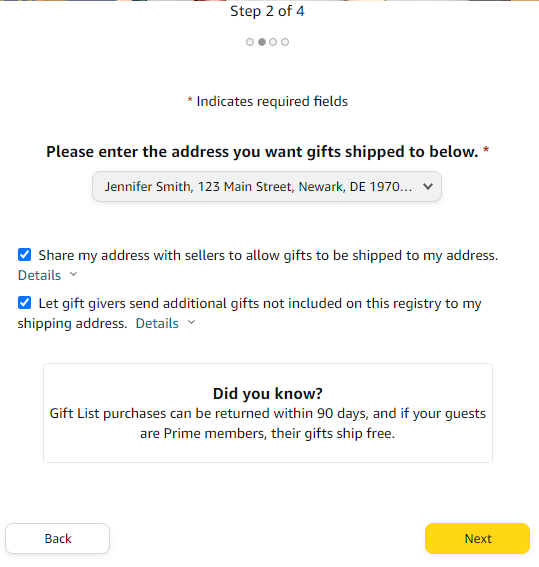
For Step 2, check the boxes that you’re comfortable with. I recommend checking both. Click “Details” to learn about each. Then click Next.
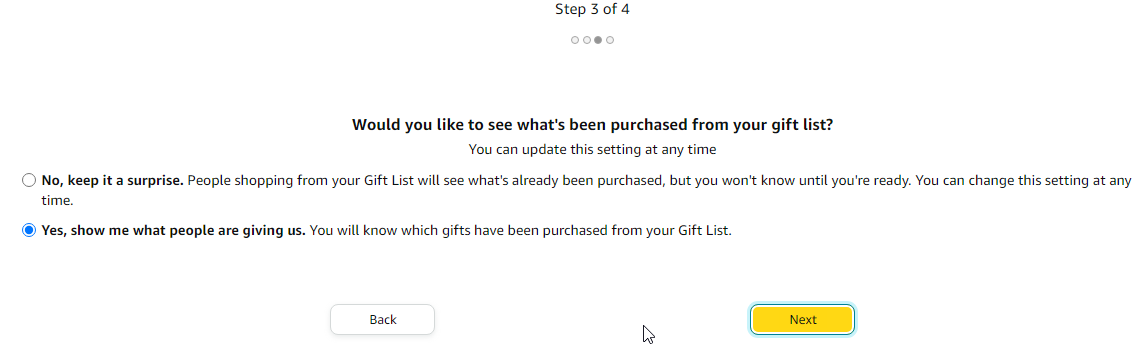
For Step 3, select the option shown below. If you keep it a surprise, then your gift list(s) won’t show what items have been purchased. Therefore, your sponsor(s) might inadvertently purchase duplicate gifts for your child(ren). This is especially a risk if you have a department sponsoring your child(ren), and multiple members of the department are accessing the gift list(s) to purchase gifts. So please do not keep it a surprise.
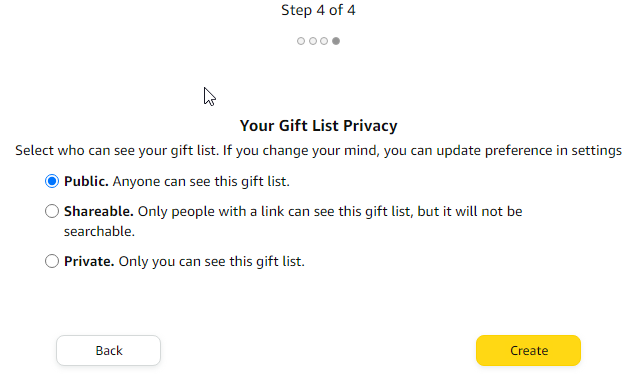
For Step 4, choose Public or Shareable. I recommend Public, so individuals within your sponsoring department can find your gift list if they don’t have immediate access to your gift list link.
Then click Create.
Here’s how the end result should look:
When completed, please email me the link to each gift list. You can add items to your gift lists afterwards.
Here’s how to get the link:
Click the icon that looks like a chain link.
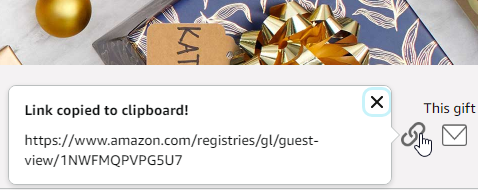
Paste the link into an email. If you’re using a computer, you can do this by pressing ctrl v
Remember, you are creating a separate gift list for each child!
Please make sure not to enable Amazon’s “Keep it a Surprise” setting, since it hides purchased items and can lead to duplicate gifts for your children.
You can put all of the gift lists in one email. Send your gift list(s) to this email addresses: MANOJ.PHILIP@CHRISTIANACARE.ORG
If you have any questions, please contact me!